Goal
Detect when a payment requires step-up authentication and present the authentication UI so the user can complete the payment.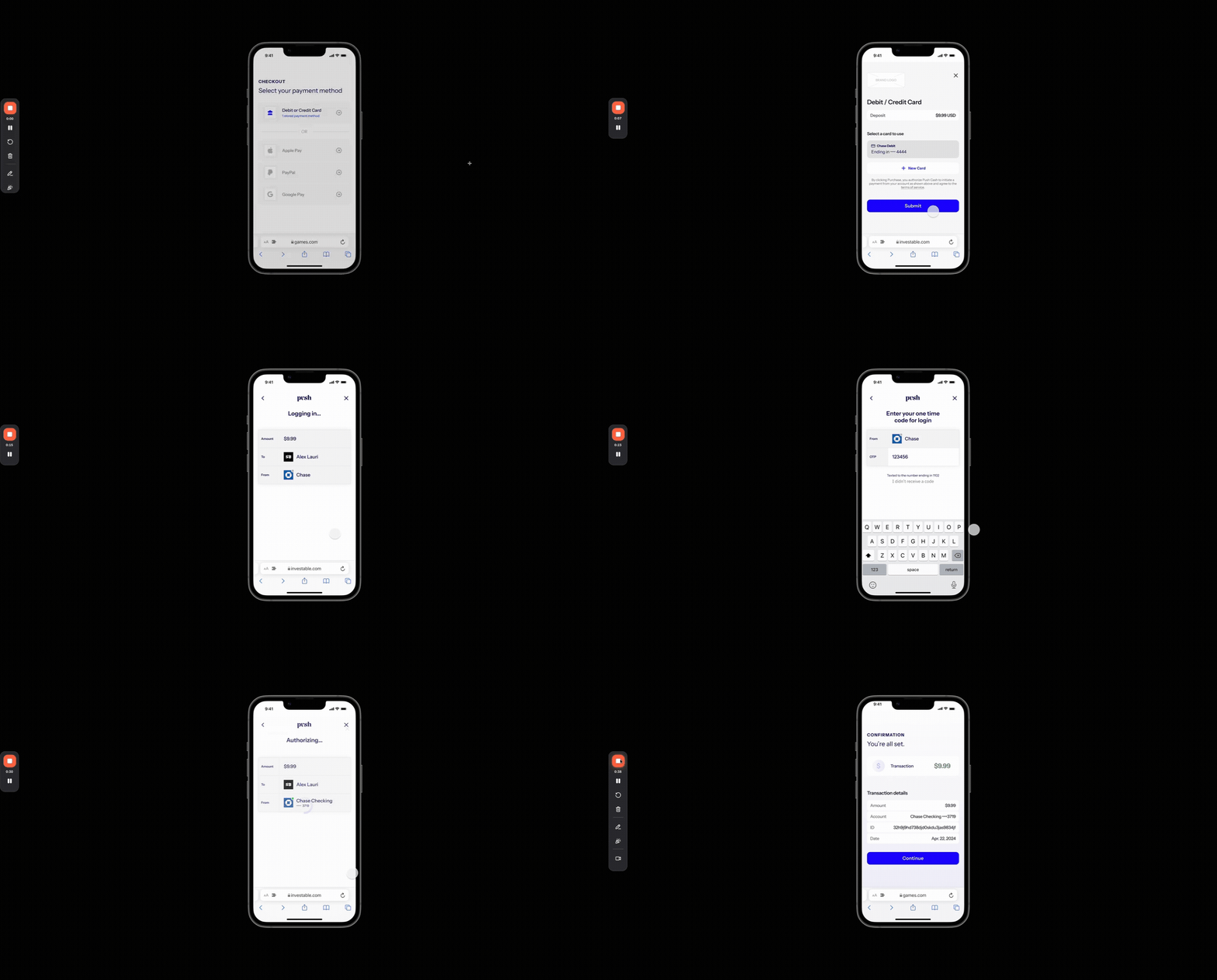
Steps
Step 1: Configure the authentication UI
What you need to do
Decide how the authentication UI will be presented to the user (iframe or system browser redirect) and configure the authorization request accordingly.How to do it
- Determine the presentation method based on your application environment (see determining how to display the authentication UI)
- If the user should be redirected at completion of the flow, include the
redirect_urlparameter in the request to authorize-payment.
Step 2: Detect when authentication is required
What you need to do
Detect when the response from the authorization engine indicates that the user must authenticate.The authorization engine may request user authentication on any payment, regardless of whether the user processing using a new card or a previously-stored credential.
How to do it
- When calling
authorize-payment, if the HTTP status code of the response is 202 Accepted, authentication is required. - Persist the intent
idwith your internal transaction record and return the authenticationurlto your frontend in order to display it to the user.
Step 3: Retrieve the final payment result
What you need to do
After the authentication process concludes, determine the final status of the payment.How to do it
- Make an authenticated request to get-an-intent from your application.
- Use the returned status to update your internal transaction record and notify the user about success or failure.
Determining how to display the authentication UI
Choose the presentation based on how the user accesses your application:- Web (mobile or desktop): present the authentication UI in an iframe. The authentication UI will signal the conclusion of the flow by submitting a message to the top-level browser window using postMessage.
- Native mobile app: open the authentication URL in the device’s default system browser (Safari on iOS, Chrome on Android). Set
redirect_urlon the authorization request to bring the user back to your app when authentication completes.
pushcash://) or a Universal Link / App Link as your redirect_url so the system browser can hand control back to your app.
Integration checklist
- Include
redirect_urlin the authorize request if the user will complete authentication in the device’s default system browser rather than an iframe - Handle
202 Acceptedresponses fromauthorize-paymentand present the authentication UI hosted aturlto the user. - Persist the intent
idbefore presenting the authentication experience to the user alongside your internal transaction record. - Test authentication required response from authorization engine using test card
6011 0009 9013 9424 - Test a payment decline after the user completes authentication using test card
5999 9819 6976 9283