Goal
Enable a user to add a new card and submit a payment for authorization in order to support- first-time users with no previously-stored payment credentials
-
returning users processing a transaction using a new card.
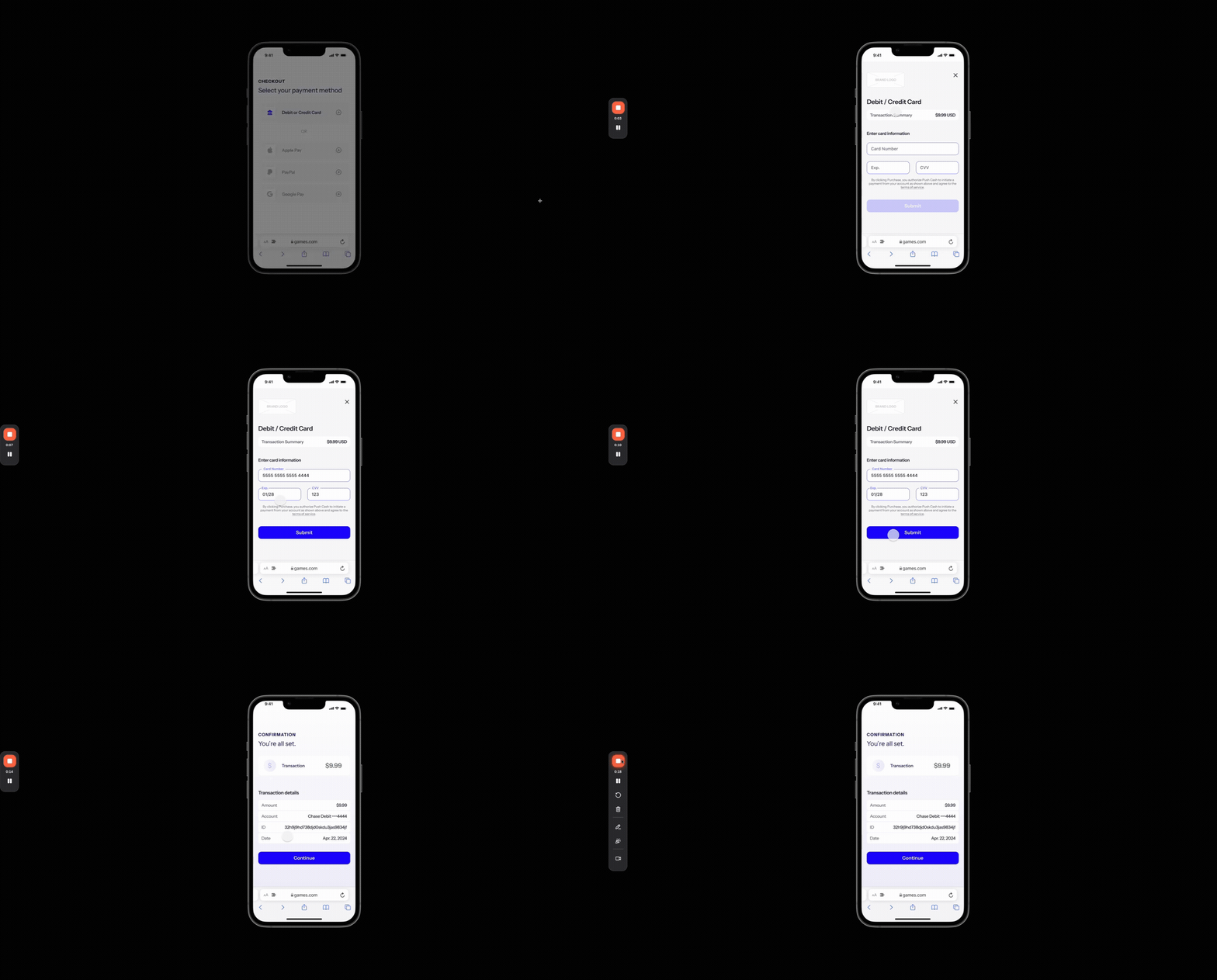
Steps
Step 1: Receive card information from the user
What you need to do
Render the Push Widget on your payment page and enable the user to submit the payment after they have provided valid card information.Before rendering the widget, ensure you have registered the user by following the create a user guide.
How to do it
- Call the create-user-url endpoint with the user ID and payment direction.
-
Render the widget to the payment page using the returned
url.
Widget Rendering Example
Widget Rendering Example
Example code to render the user widget to an element on the page and enable a submit button once the user provides valid card information.
onValid callback when the form is complete. For full widget customization options (e.g. colors, padding, typography) see the JS SDK Reference
Step 2: Submit the payment for authorization
What you need to do
When the user submits the payment, call the widget to tokenize the user’s card information and submit it to the authorization engine.How to do it
- Generate a token from the widget.
- Make an authenticated request to authorize-payment with the payment details (amount, direction, currency) and tokenized card data.
- Display the result (approved or declined) based on the authorization response.
Widget Tokenization Example
Widget Tokenization Example
Example code to generate a token from the widget
Integration checklist
- Submit your internal transaction record identifier in the
tagfield of the authorize-payment request - Simulate an approved transaction using test-card
5555 5555 5555 4444 - Simulate a declined transaction using test-card
5999 9919 6976 9266